Category: Microtutorial

  • Micro tutorial: Calculating Weighted Averages with Weighting applied to Multiple Columns in a Pandas Dataframe

    I am recording this solution here because when searching for how to do this, I found many answers about how to weight one Pandas column by another column and I had already successfully done that by myself. For me, the trick was to apply one weighting column across several columns. For example, if I mix multiple batches into one tank, I might want to find the weighted average of all the attributes I am tracking for that lot.

    # make a list of all the column names to which the weighting will be applied
    var_cols = ['chiral_purity', 'water_content', '[impurity]']
    
    # each Input Batch property is weighted by how much was added to the tank by weight where the master dataframe holding all batch data is called dfA
    Output_Lot = dfA.groupby('InputBatch').apply(lambda x: pd.Series([sum(x[v] * x.InputWeight) / sum(x.InputWeight) for v in var_cols]))
    
    # Use the input column property names with the suffix "_mix" in the Output Lot dataframe to indicate the weighting has been performed
    Output_Lot.columns = [e+'_mix' for e in var_cols]

    This solution was inspired by this post.
  • Micro tutorial: Manually back up a WordPress site hosted on Dreamhost

    Before updating, WordPress always reminds you to have a backup in case things don’t work automatically and you want to restore your site from a backup. On a grammar note, Wikipedia handily explains: The verb form, referring to the process of doing so, is “back up”, whereas the noun and adjective form is “backup”. To back up a site, you need to back up two things, the database and the files.

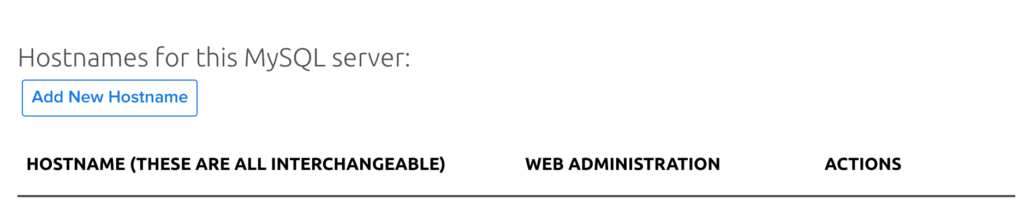
    To back up the site database, go to phpMyAdmin. Log in to your Dreamhost panel, navigate to Websites\MySQL Databases and scroll down. The top of the window is about adding a new database, which is not what you are looking for right now because you want to back up an existing one. When you get to this header, you are in the right place:

    Dreamhost panel Websites/MySQL Databases/Hostnames for this MySQL server

    Under this list, choose the site you are backing up from the list of sql.sitenames.com and click the phpMyAdmin link under the Web Administration heading. It will open as a new tab. If you have multiple databases for this site, click on the one you want to back up. By default, databases open in the Structure tab. Click on the Export tab at the top. Technically, you could export in whatever format you want, but you probably want SQL. When you click the Go button, it might give you some options, but then will start downloading a file called sitename.sql. This is your database backup.

    Now, to back up your files, use the shell to ssh into sitename.com.

    ssh username@sitename.com
    ls #find out where you are, navigate to what you want to back up
    tar -czf sitename.com.dateyy.mm.dd.tar.gz sitename.com
    ls #run again to make sure you see the file you just created

    That’s it. Now you can update your site by clicking the upgrade button on your WordPress dashboard. This time the update worked just fine for me. Therefore, I did not need a backup. Stay tuned for the time it does not work for my post about restoring from a backup. When the time comes, future me will want this link to Rob’s post on restoring his site from a backup.